You're planning a lidar mission in a remote location and you're not sure if there's sufficient RTK network coverage. To be safe, you decide to bring your own base station so the collected data is accurately georeferenced regardless of cellular signal — and you can always fall back to PPK positioning in post-processing if the real-time link drops.
On site, you place the base station on a stable, unobstructed spot with a clear view of the sky in all directions and open the Emlid Flow app on your phone.
Method 1: Placing on an unknown point
This method assumes you have sufficient cellular coverage and access to the NTRIP network to position the base station. Essentially, you are using the base station as a rover.
Create a new survey and give it a name.
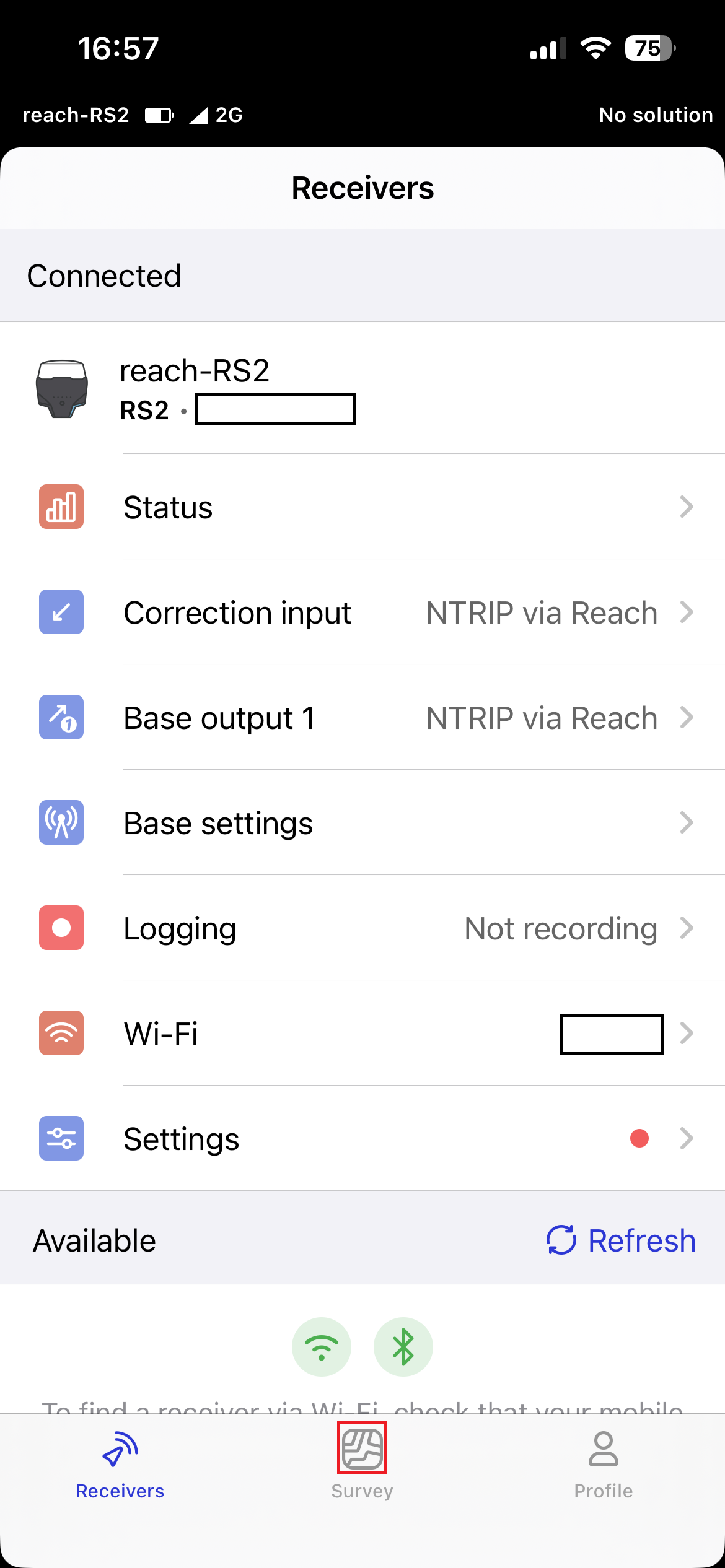
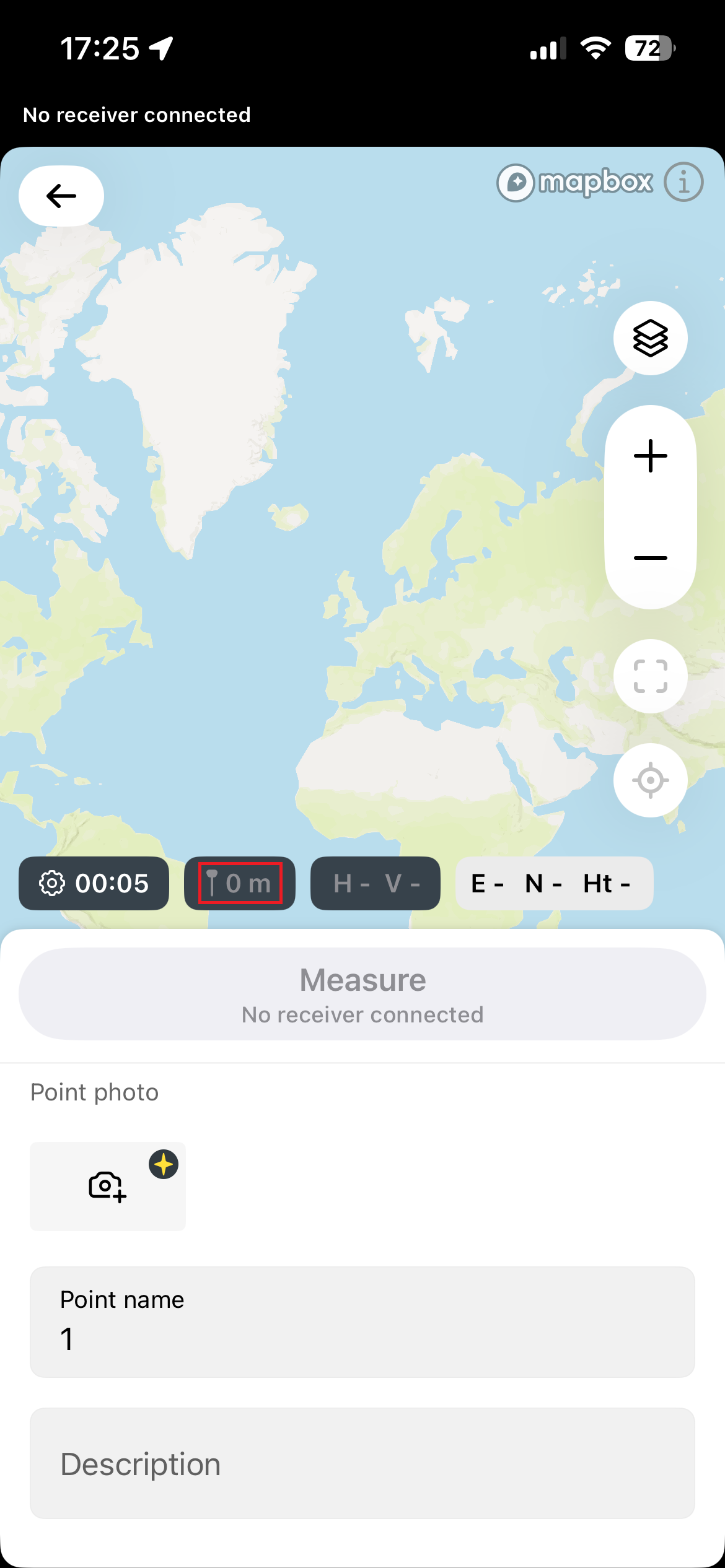
Set the pole height to 0 and then measure this point 3 or more times, resetting RTK fix each time — wait for fix signal and measure again. (Emlid Reach does not have a reset RTK button — you can put something on top of the antenna to disturb the signal.)
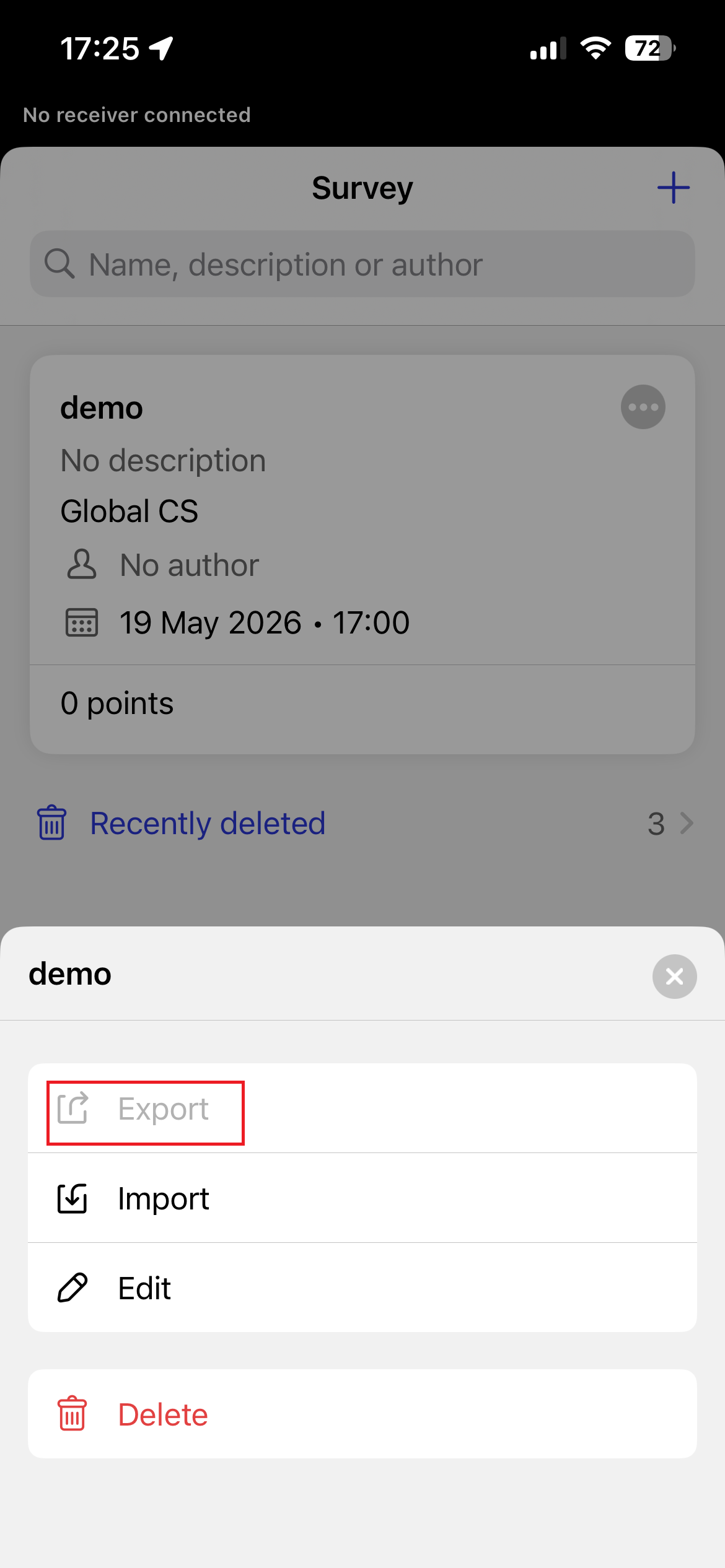
Then export the survey to CSV, open it in Google Sheets, and take the averages.
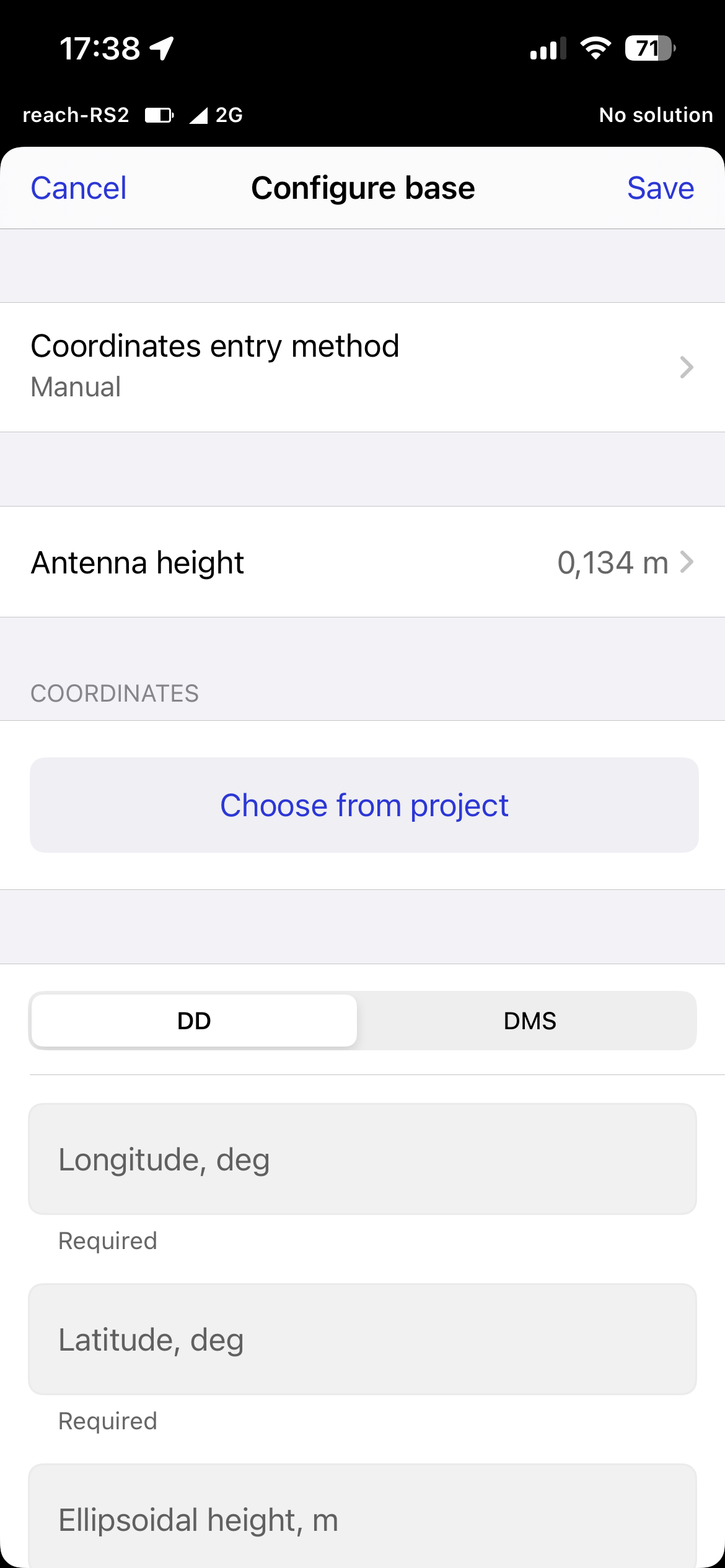
Now go back to the Receivers tab and select Base settings → Configure. Set Coordinates entry method to Manual and enter your measured average point in the correct fields, then click Save.
Now your base station is set.
Now go back to the Receivers tab and select Logging, then press Start recording. Make sure it covers the whole flight mission.
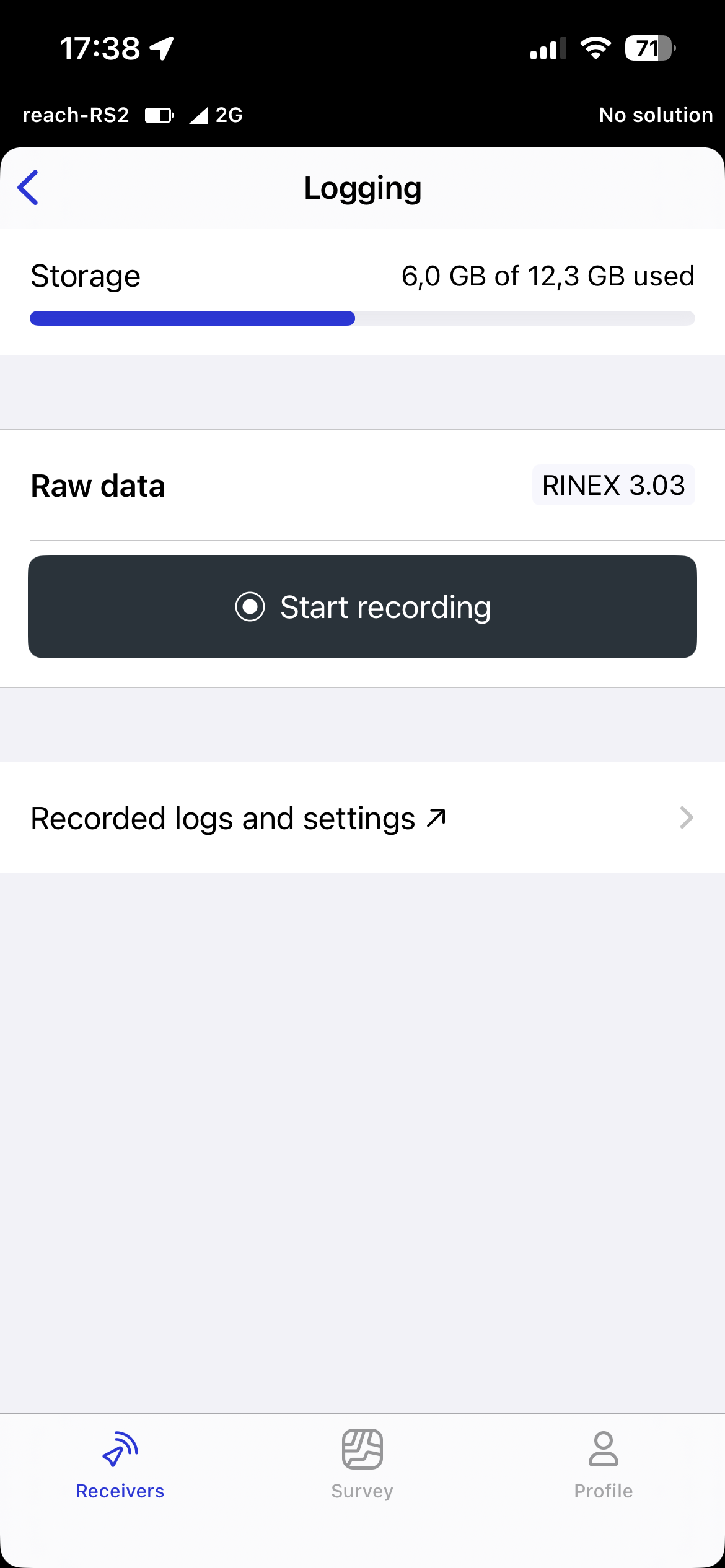
After the mission is completed, press Stop recording. This creates a zip file that you can later use for PPK positioning.
Method 2: Placing on a known point
When placing the base station on a known point, you need to position it accurately and level with the mark on the ground. Go to Base settings → Configure. Set Coordinates entry method to Manual and enter the known point coordinates. Select Antenna height — here you need to add the pole height, because you are positioning the antenna. Then click Save.
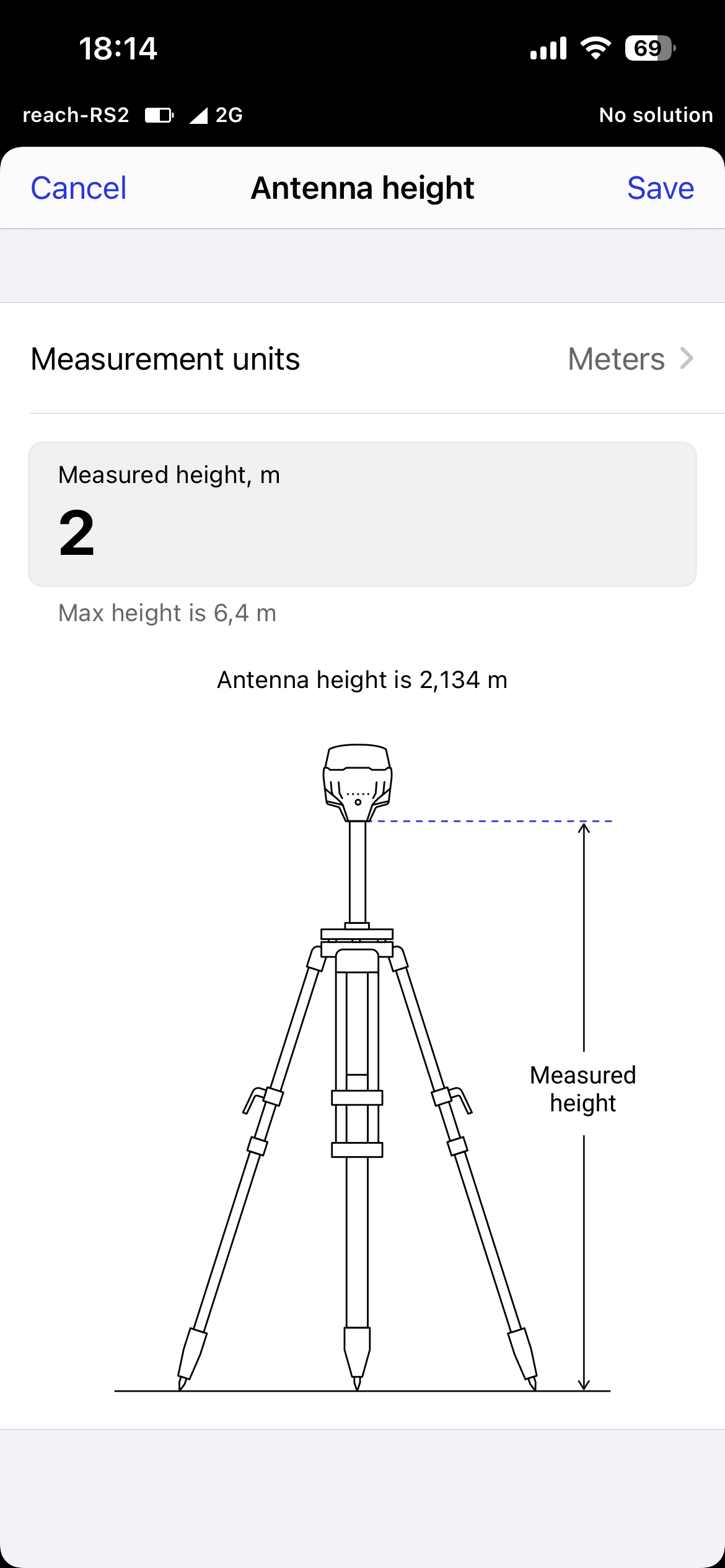
Now the base station is set. Go back to the Receivers tab and select Logging, then Start recording, fly your flight, then stop recording when you are finished.
Method 3: Static point positioning
Just place the base station level with a clear sky view, as usual. Open the Emlid Flow app, go to the Receivers tab, select Logging, and press Start recording. Let it record for a minimum of 4 hours — longer is better. Then stop recording and run static point positioning in Emlid Studio or other third-party positioning software.
Got questions about RTK workflows or L3 data processing? Drop a note to hello@djiflightdata.com.